HeadRush FX has been actively testing all applicable products with each beta release of macOS 26 Tahoe. We understand how important it is for all our users to know exactly what works before they make the jump to any new updates. Please refer to this article for all HeadRush FX Hardware & Software compatibility with macOS 26 Tahoe.
TABLE OF CONTENTS
- macOS 26 Tahoe Hardware Support
- macOS 26 Tahoe Software Support
- How do I prevent my system from updating automatically?
macOS 26 Tahoe Hardware Support
All compatibility testing for macOS 26 Tahoe is performed on Intel and base-level Apple Silicon processors.
The following products have all been tested with the latest available firmware for USB-required functions:
- File Transfers
- USB Audio Recording
- Firmware Updates
| Product | Intel Processor | Apple Silicon | Firmware Updater |
| Pedalboard | Supported | Supported | 2.7.0 |
| Gigboard | Supported | Supported | 2.7 |
| Looperboard | Supported | Supported | 2.0.5 |
| Prime | Supported | Supported | 5.0.1 |
| Core | Supported | Supported | 5.0.1 |
| Flex Prime | Supported | Supported | 5.0.1 |
| Sheeran Looper + | Supported | Supported | 2.0.0 |
| Sheeran Looper X | Supported | Supported | 1.0.2 |
| VX5 | Supported | Supported | N/A |
macOS 26 Tahoe Software Support
| Product | Intel Processor | Apple Silicon | Version |
| Revalver | Supported | Supported | 5.1.2 |
| Amp Cloner | Supported | Supported | 5.1.2 |
How do I prevent my system from updating automatically?
Please be sure to check that your operating system is not enabled to update itself automatically. While this can be a useful feature for some, anyone who relies on the stability of their software tools should prefer control over which base operating system is installed on their system.
Automatic updates will not account for software compatibility before updating, which could lead to problems with stability and other functionality if your gear is not ready for the changes in the operating system.
To avoid any delays or downtime, it's best to deliberate when making the decision to update and use the opportunity to check that all your software tools will be compatible before making the jump. To turn off automatic updates for macOS, please do the following:
- Navigate to System Settings > General > Software Update
- Click the Information (i) icon beside Automatic Updates
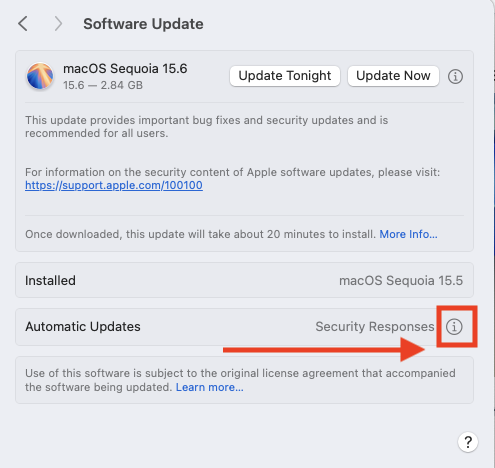
- Uncheck all boxes below:
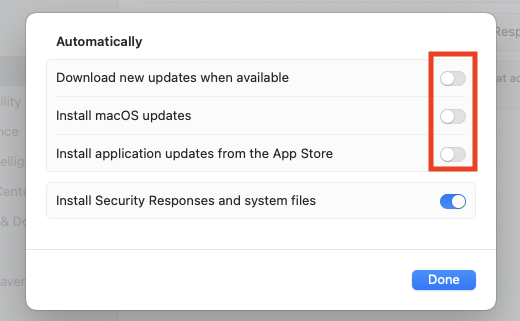
- Click Done to apply the changes
Was this article helpful?
That’s Great!
Thank you for your feedback
Sorry! We couldn't be helpful
Thank you for your feedback
Feedback sent
We appreciate your effort and will try to fix the article