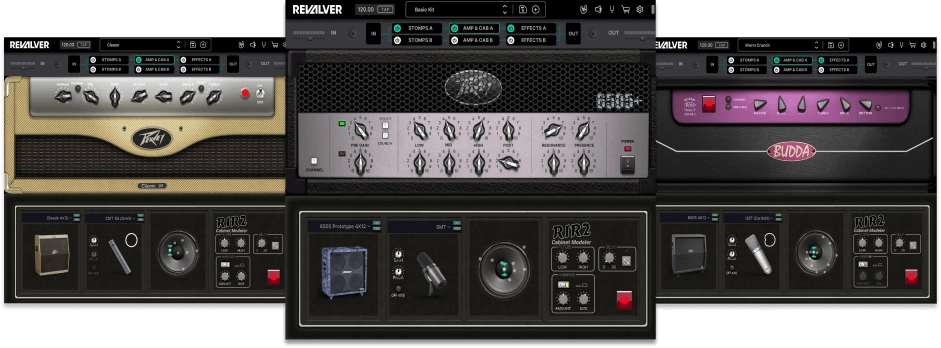
ReValver® models guitar amplifiers, stompboxes, and effects at the component level, resulting in unmatched realism, dynamics, and tone. Now with the added power of Headrush FX, the software has an unprecedented level of tonal variety, and in exploring the possibilities, you may find yourself wanting to tweak your tones and signal path via MIDI Controllers.
This guide will help you connect your MIDI controller to make on-the-fly changes to tone for recording or live performances and utilize the most out of the MIDI routing power available within ReValver.
TABLE OF CONTENTS
- Connect your MIDI Controller
- Enable your MIDI Controller within ReValver
- Mapping your MIDI device to an FX Parameter
- How to remove a mapped parameter
- Can multiple parameters share the same MIDI message?
Connect your MIDI Controller
The first step will be connecting your MIDI controller to the software. Please note that if you are using a controller without a USB-MIDI port available, such as a foot controller, you will need to use a USB-MIDI interface while using the software.
If using a USB-MIDI interface, this device will be shown as the available MIDI device within ReValver.
Enable your MIDI Controller within ReValver
- Once your MIDI hardware is connected, go to the Settings menu within ReValver via the top-right cog icon.

- Select Audio/MIDI
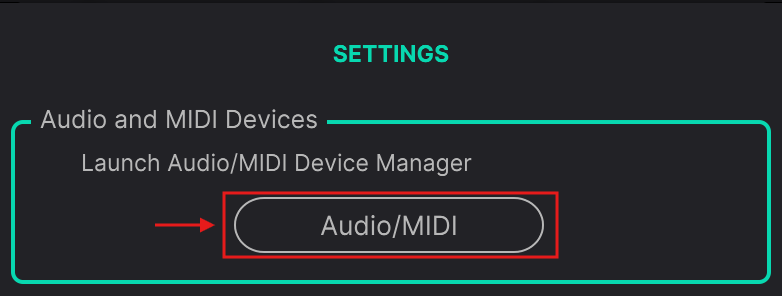
- Scroll down to the MIDI Inputs section
- Select your MIDI device(s) you intend to use to control Revalver by clicking on the circles next to the MIDI device.
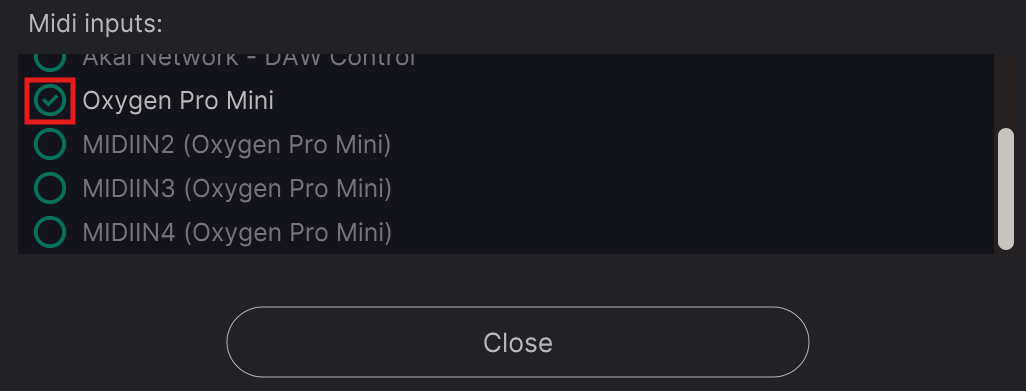
- Once selected, close the settings screens
Mapping your MIDI device to an FX Parameter
To map your MIDI device to a parameter within Revalver, you're going to want to go to the section where the module you want to map is located. To map a MIDI control to a specific parameter:
- Right-Click (Control+Click on Mac) on the parameter you want to map
- Select MIDI Mapping
- Select "Create MIDI Mapping for this control."
For Example: MIDI Mapping the Drive parameter on the D1 DIST pedal within Stomps A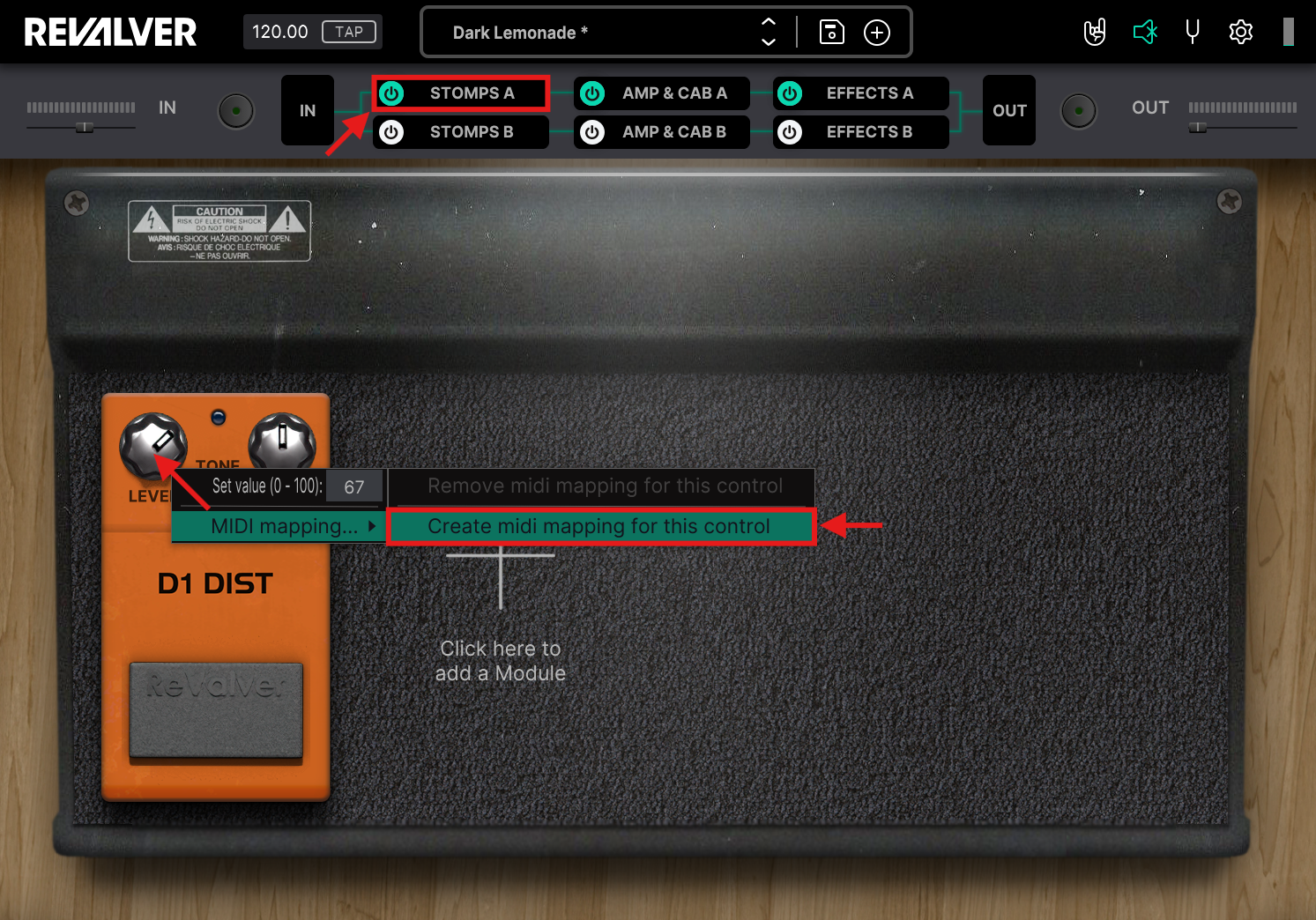
- Within the MIDI Mapping section, you will want to move the knob or press the button for the MIDI message you want to control the parameter of the effect.
The software will change from "Awaiting MIDI input..." to "A message was received."
Awaiting MIDI input...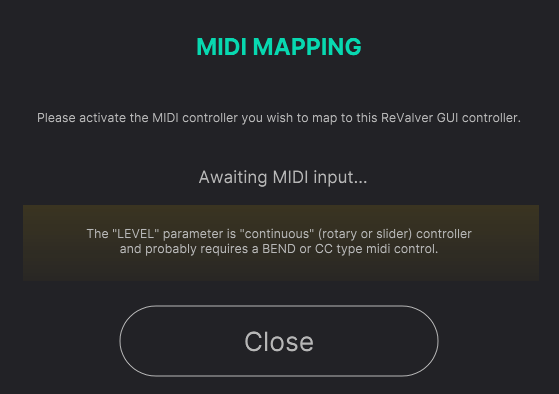
A message was received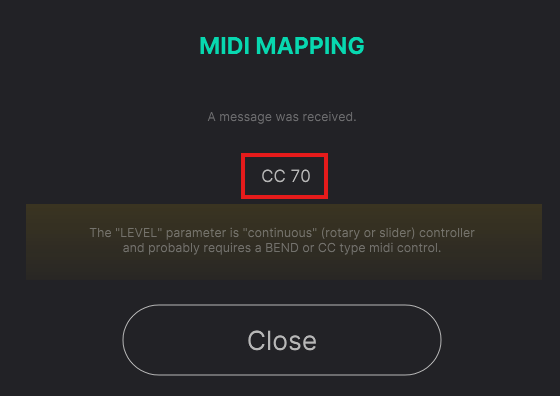
- Once the MIDI message is input, you will be prompted for the MIDI message used
- Press Close
- Enjoy your new MIDI Mapping!
Important Note - MIDI Mapping is not shared between presets.
To ensure you don't lose any MIDI mapping set. Please save the current preset as a new preset or overwrite the current preset you have adjusted.
How to remove a mapped parameter
If you find that you have mapped a parameter to a control that isn't well suited to its control (i.e., a toggle switch being mapped to a rotary control), please follow the steps below to clear the MIDI Mapping for that control:
- Locate the module you originally mapped
- Right-click on the mapped parameter
- Select "Remove Midi Mapping from this control:..."
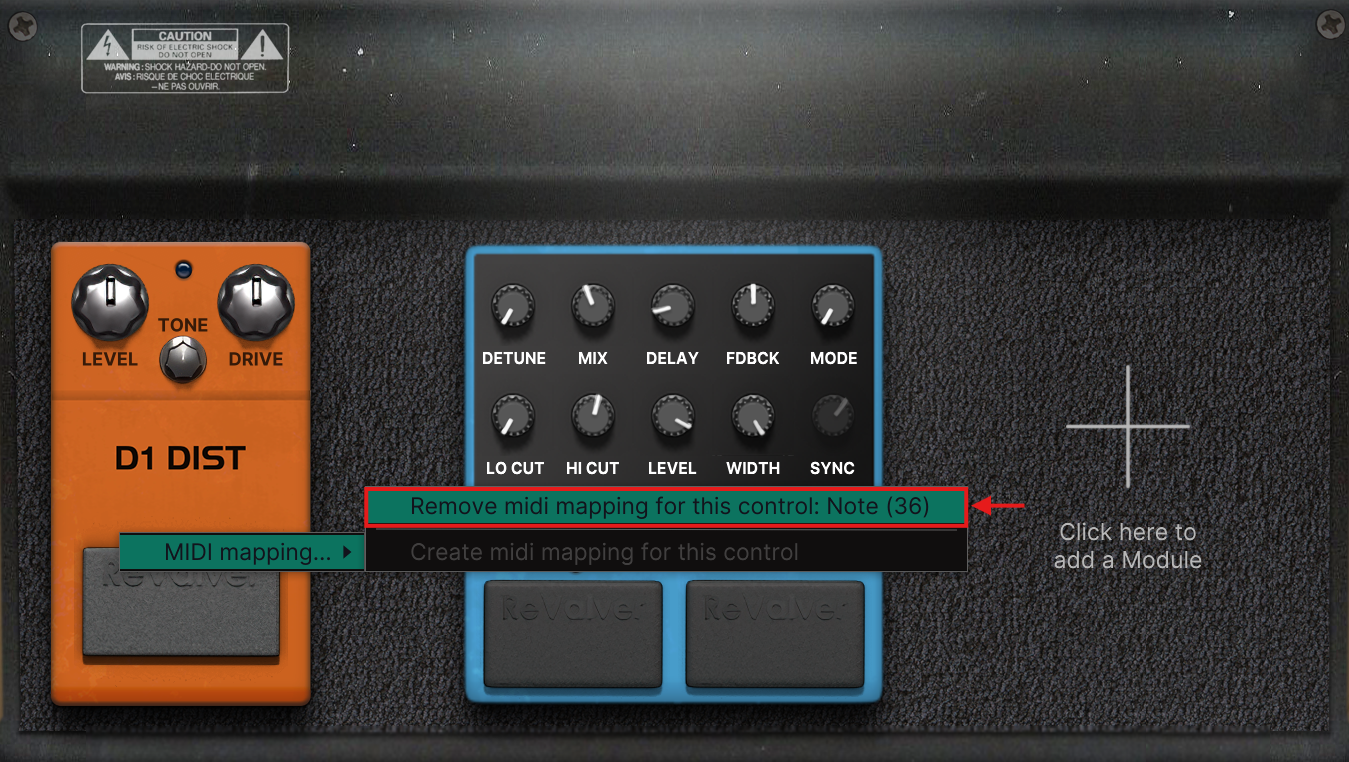
Can multiple parameters share the same MIDI message?
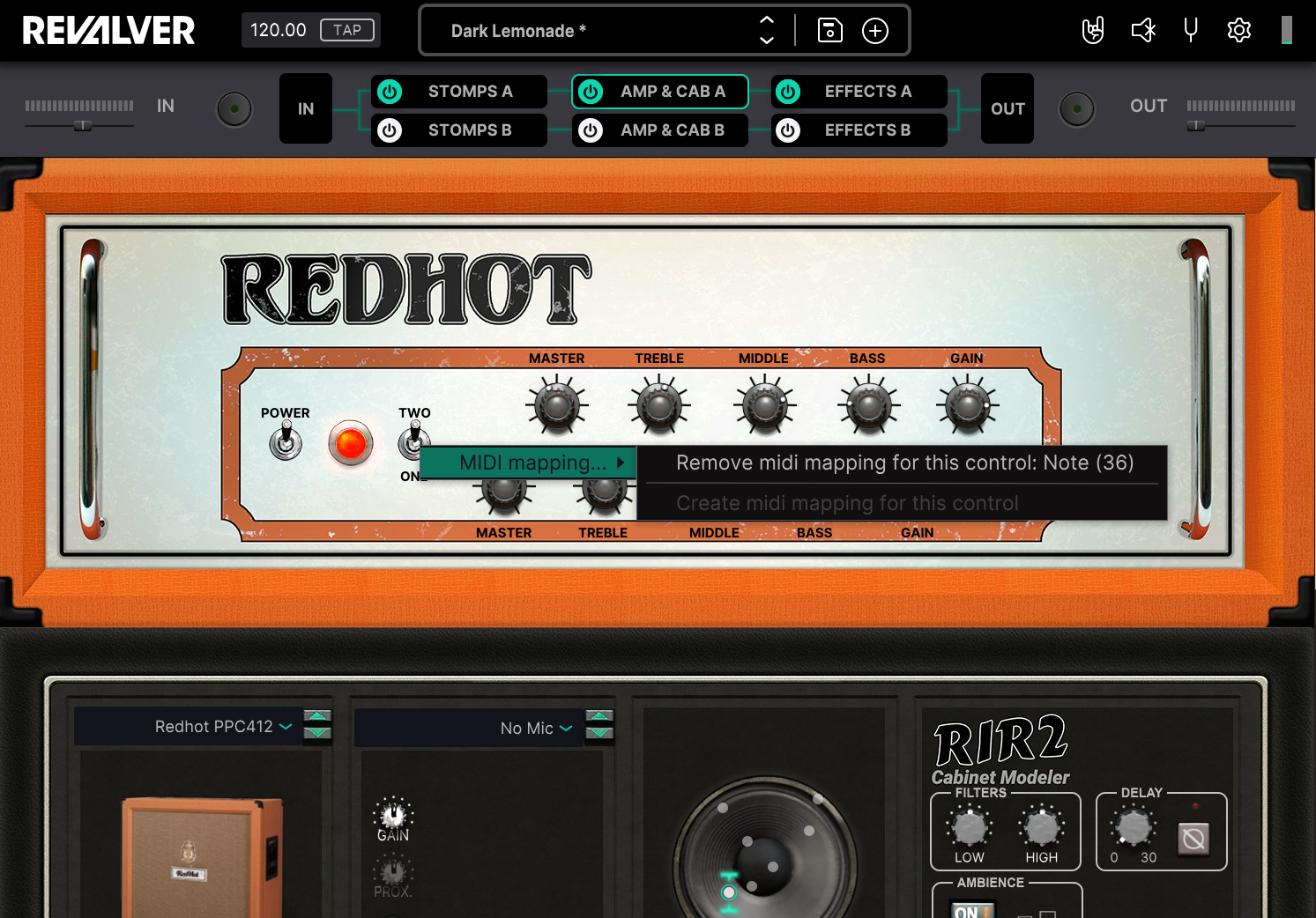
Yes! One of the great strengths of MIDI Mapping in ReValver is that you can set the same CC message/mapping to different controls across the entire signal chain.
For example:
- A D1 DIST pedal in Stomps A: can be enabled and bypassed under a MIDI message: Note (36)
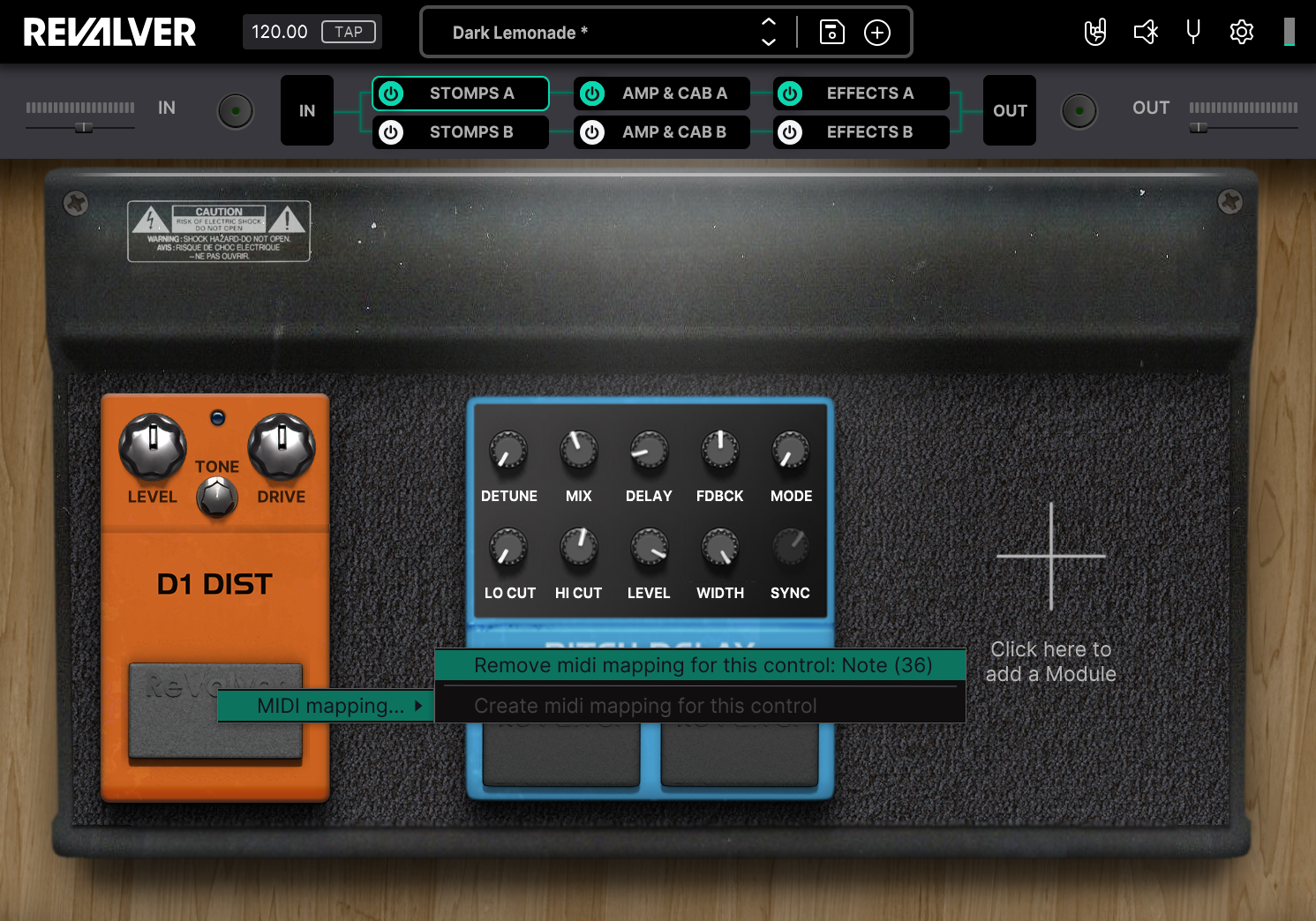
- The Redhot AD30TC in Amps & Cabs A: can change between Channel One and Two under the same MIDI message: Note (36)
- A Tape Echo in Effects A: can be enabled and disabled under that same message: Note (36)
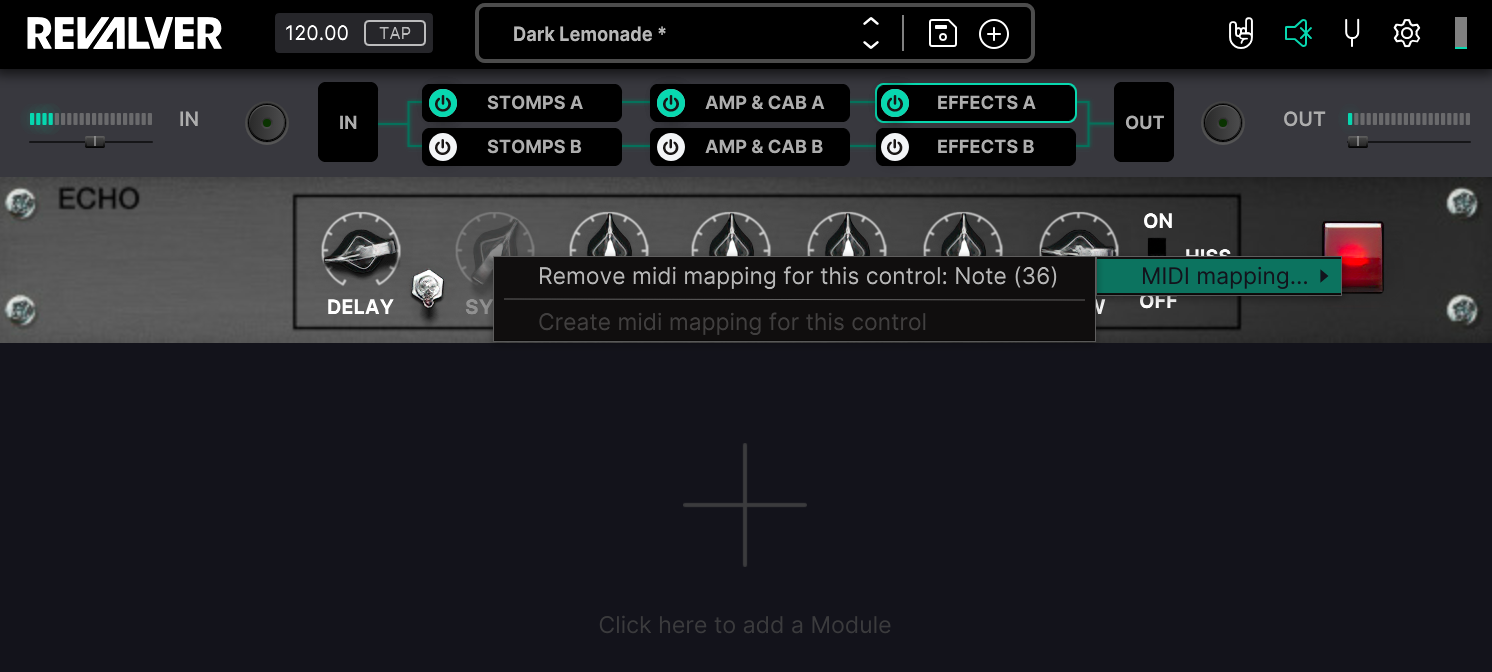
This allows you to completely change your sound under the press of one button without the need to change presets!
Was this article helpful?
That’s Great!
Thank you for your feedback
Sorry! We couldn't be helpful
Thank you for your feedback
Feedback sent
We appreciate your effort and will try to fix the article