With the most recent firmware releases, Headrush has added a drum machine to the board. The HeadRush Drum Machine is your new onboard, on-call drummer for solo practice, songwriting, and performances. Access 16 drum kits and 134 styles across 15 genres, designed by the experts at Alesis Drums and BFD. Trigger fills, transitions, and accents all via footswitch. Easily access your pedal's onboard Looper controls to layer riffs and develop song ideas. Fine-tune every element of your drum sound and feel with Mix, EQ, Length, Tuning, Reverb, Drive, Intensity, and Groove controls.
TABLE OF CONTENTS
Getting Started
To begin, please make sure your Headrush firmware is up to date. For most, a connection to the internet via WIFI will prompt install, but for those without access to a stable internet connection all updates, instructions and notes can be found on the Headrush Downloads page.
Once completed, the Drum Machine can be accessed from any rig through the Menu or by holding down the Modes footswitch, then pressing the Drums footswitch on the Prime, or holding down the Drums footswitch on the Core/Flex Prime, where it is a secondary footswitch function to select.
As you'll now see, your footswitch mode has changed with labels reflecting the Drum Machine functions.
Note: Due to the advanced nature of Drum Machine that the Global footswitch behavior for On Press/On Release will be defaulted back to On Release while within Drum Machine, this is because the additional functions require some doubling up on certain footswitches.
Prime users may also notice that footswitch functions are across the bottom of the screen for the first time, which is normal for Core/Flex Prime users who do not have footswitch labels. These are labeled so that you can see the secondary functions of the switches, for example:
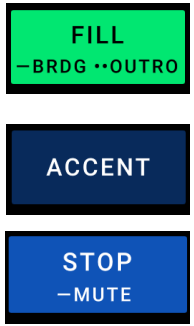
Pressing the above footswitches a single time will give you the main functions (Fill, Accent, Stop). Anything marked with a "-" is activated by holding the switch, and anything with 2 dots ". ." is activated by double tapping the switch in rapid succession. In the Fill footswitch example above, holding would give you the Bridge rhythm, double tapping would bring about the Outro.
Many of the main screen's functions are covered within the user guide within the Drum Machine section, and things like Style, Tempo, and more can be edited to fit what you are playing.
Looper within Drum Machine
To start recording a loop, press the footswitch labeled RECORD while the drum machine is playing. The footswitch indicator will flash until the next bar and will then start recording the first layer of the loop. Each additional single press of this footswitch will toggle the Looper between playback (PLAYING) and overdub (DUBBING) modes.
• To stop the loop, double tap the footswitch labeled STOP.
• To clear the loop, hold the footswitch labeled CLEAR.
• To peel off the last recorded layer of the loop, press the footswitch labeled PEEL.
• To bring back that layer, hold the footswitch labeled UNPEEL.
External midi controls for the looper will also work if an appropriate controller has been connected, similar to using the looper from your Rig screen.
One important distinction to be made however is the function of the save button- After recording a loop while within Drum Machine, the save button will not save the Loop you have recorded.
Within Drum Machine, the save button's function is to save presets of rhythms, kits and other settings for you to call back quickly. To save the loop you have recorded, you must exit back to your menu and enter the Looper screen, then save with the save icon here; similar to if you recorded a loop from the Rig screen.
External MIDI Control
One distinction when using an external MIDI controller is how different messages will need to be setup.
Listed at the back of the user guide under the External Midi Control section are midi controls that can be setup for automation from a computer or through the use of a MIDI footswitch controller. For your convenience we will list the same at the end of this section.
One distinction to be made however is the difference in functions- the functions labeled Drum Machine(CC#31+) within the chart are simple messages that can be activated through sending a CC message or through any footswitch message(Latching or Momentary).
If using the active footswitch parameters on your board through midi(CC#49+) these functions will need to follow the same activation rules as your footswitches, i.e. an on message followed quickly by an off message to copy the motion of pressing and releasing a footswitch so that the Headrush can analyze based off the action whether you meant to do a press action, a hold action, or a double tap for the functions assigned to the footswitch.
For that reason, we do not recommend using Latching message foot controllers for those functions(CC#49+)
| CC #31- Drum Machine - Open/Close | CC #49- Footswitch 1 |
| CC #32- Drum Machine - Previous Kit | CC #50- Footswitch 2 |
| CC #33- Drum Machine - Next Kit | CC #51- Footswitch 3 |
| CC #34- Drum Machine - Previous Style | CC #52- Footswitch 4 |
| CC #35- Drum Machine - Next Style | CC #53- Footswitch 5 |
| CC #36- Drum Machine - Previous Variation | CC #54- Footswitch 6 |
| CC #37- Drum Machine - Next Variation | CC #55- Footswitch 7 |
| CC #38- Drum Machine - Volume - | CC #56- Footswitch 8 |
| CC #39- Drum Machine - Volume + | CC #57- Footswitch 9 |
| CC #40- Drum Machine - Intensity - | CC #58- Footswitch 10 |
| CC #41- Drum Machine - Intensity + | CC #59- Footswitch 11 |
| CC #42- Drum Machine - Play/Stop | CC #60- Footswitch 12 |
| CC #43- Drum Machine - Fill | |
| CC #44- Drum Machine - Next/Bridge | |
| CC #45- Drum Machine - Outro | |
| CC #46- Drum Machine - Mute | |
| CC #47- Drum Machine - Accent |
Downloading other Drum Kits
Now included inside your Global Settings is a new tab, Activations. On the Activations tab, you can download 15 additional drum kits for the Drum Machine when connected to a Wi-Fi network.
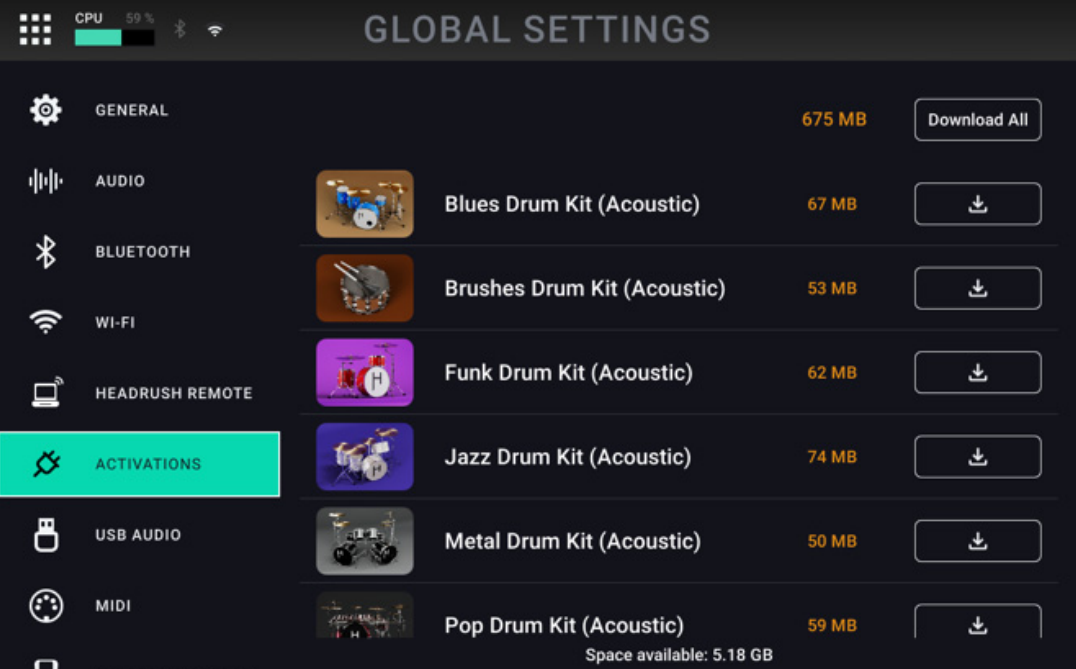
To download drum kits, tap the Download All button at the top of the page to download all kits at once, or tap the download icon next to each kit to download individually. You can see the available space left on Prime at the bottom of this page, and you can also see the size of each drum kit next to its individual download button.
You can cancel single downloads in process by tapping the X icon, or you can cancel all downloads in progress by tapping the Cancel All button at the top of the screen.
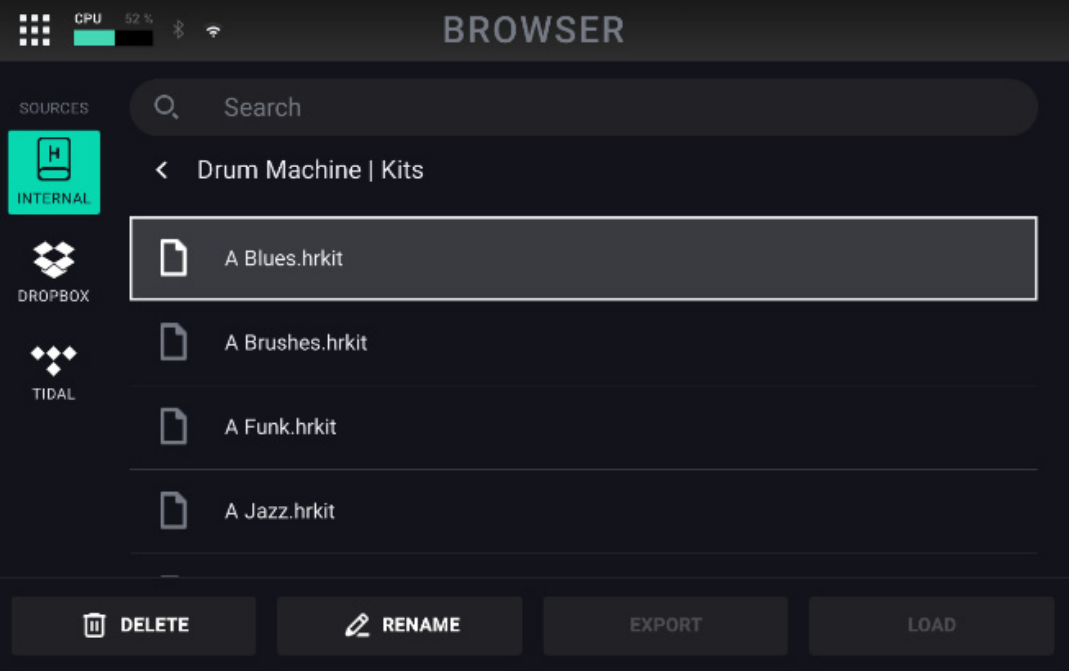
To delete drum kits, navigate to the Menu screen and tap the Browse icon. Once you’re on the File Browser page, enter the /Drum Machine/Kits folder, tap a drum kit to select it, and then tap the Delete button.
Was this article helpful?
That’s Great!
Thank you for your feedback
Sorry! We couldn't be helpful
Thank you for your feedback
Feedback sent
We appreciate your effort and will try to fix the article